> ## Documentation Index
> Fetch the complete documentation index at: https://docs.deeptrace.com/llms.txt
> Use this file to discover all available pages before exploring further.
# Guide
> Explore how to use Deeptrace in Slack
Before diving in, make sure you've:
* Completed the onboarding flow, check out **Integrations** for more info
* Added **Deeptrace** to a channel with engineering alerts
## Investigate Alerts in Slack
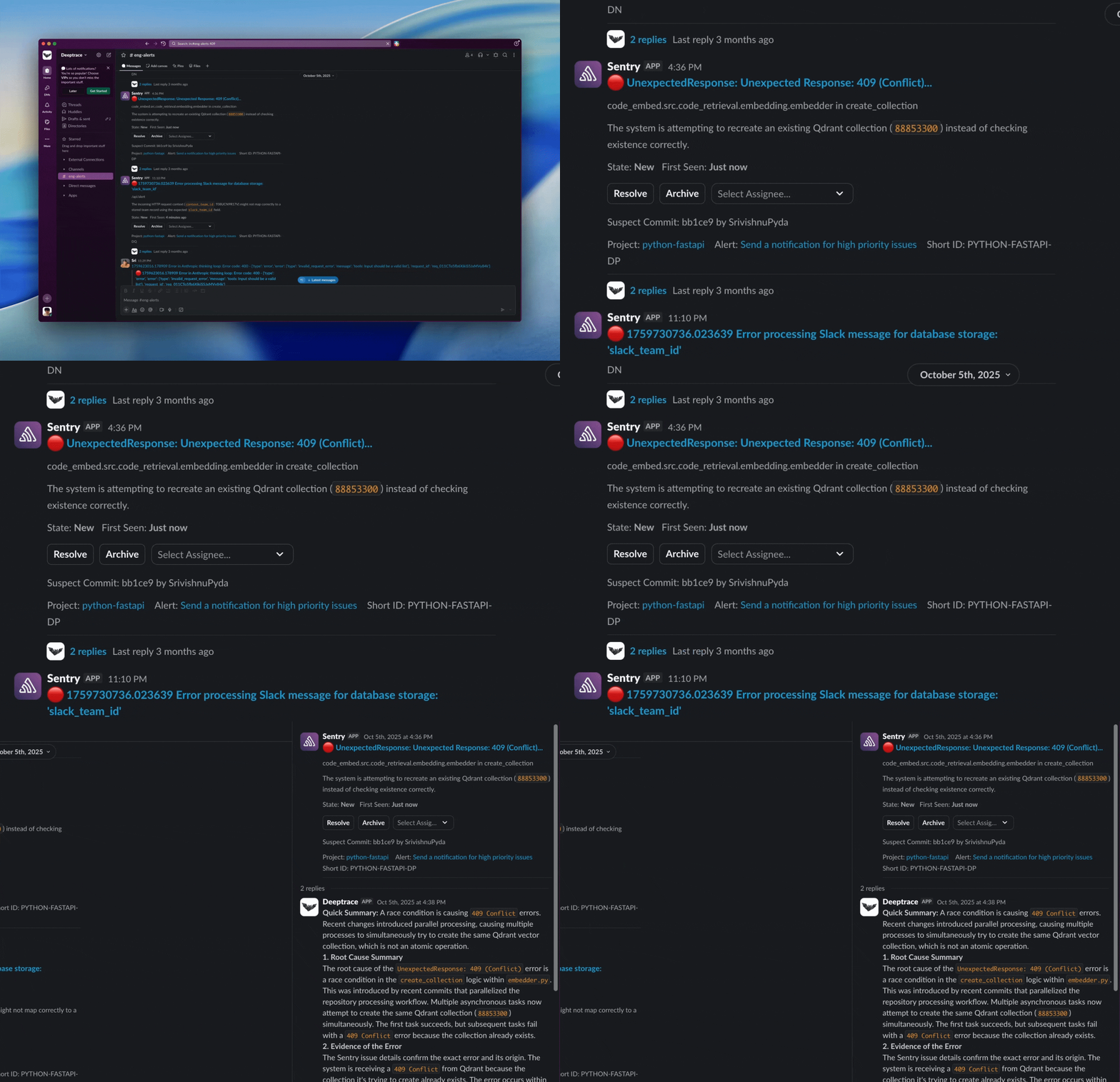
When an alert fires, Deeptrace acts as your first responder in Slack, gathering context, correlating signals, and synthesizing a **root cause within minutes**. You'll see a message like this in Slack:
 ## Debug with Deeptrace
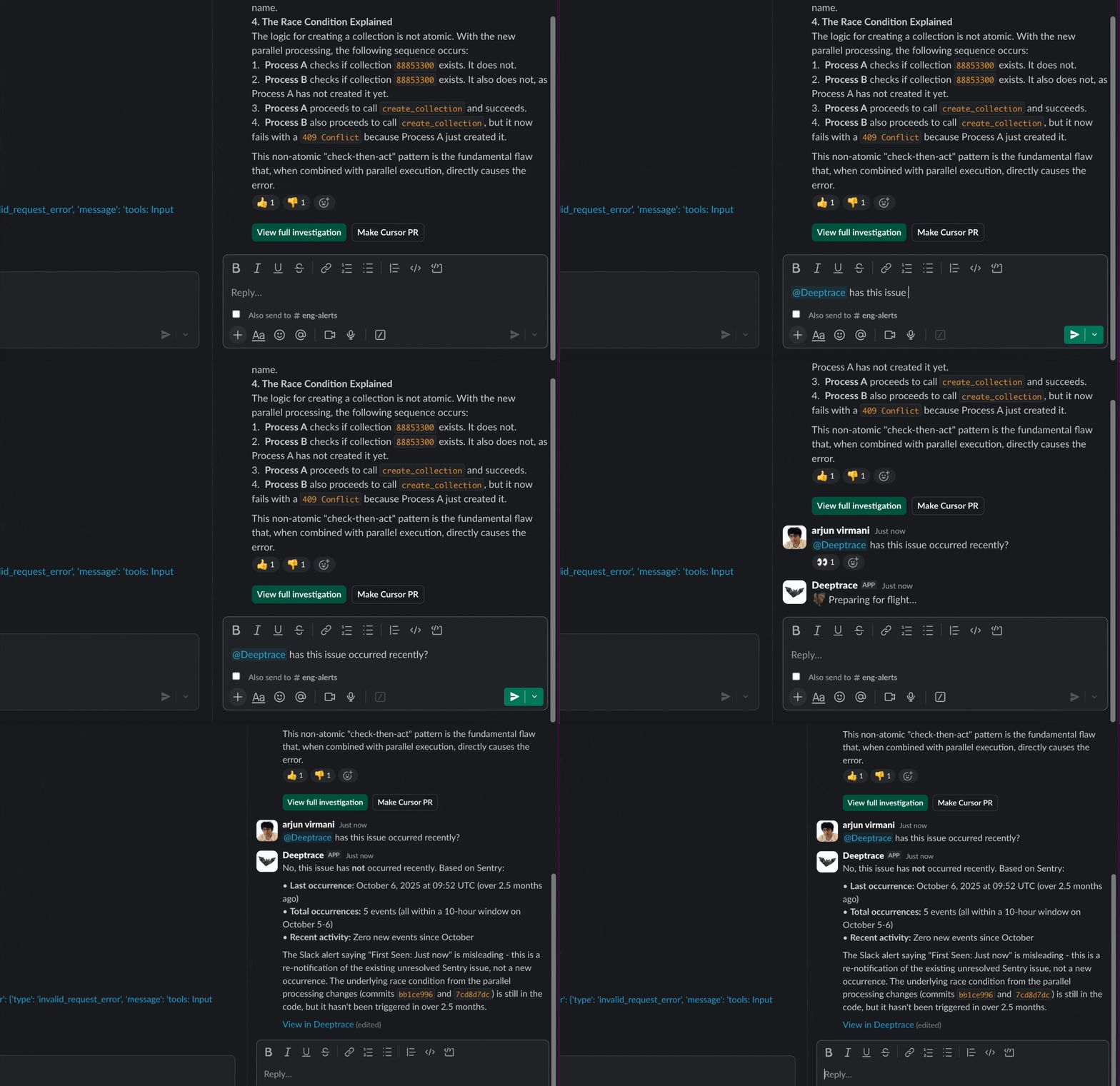
In Slack, simply type `@Deeptrace` to ask questions about recent investigations, explore what’s happening in your system, or debug issues in real time alongside Deeptrace.
## Debug with Deeptrace
In Slack, simply type `@Deeptrace` to ask questions about recent investigations, explore what’s happening in your system, or debug issues in real time alongside Deeptrace.
 Tip: Use `@Deeptrace agent`to manually kick off a full, one-shot investigation using additional compute and reasoning.
## Create a PR & Make a Ticket in Slack
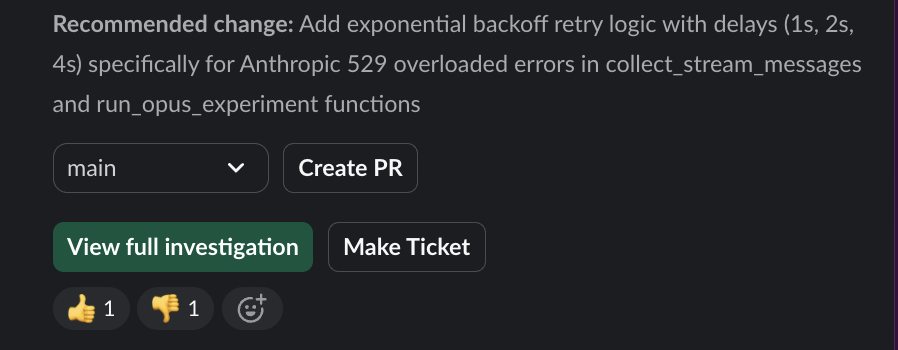
When Deeptrace completes an investigation, you can create a PR directly in Slack by selecting **Create PR**. Use **Make Ticket** to automatically create a ticket in Linear or Jira capturing the issue, root cause, and proposed fixes so nothing gets lost after an incident.
Tip: Use `@Deeptrace agent`to manually kick off a full, one-shot investigation using additional compute and reasoning.
## Create a PR & Make a Ticket in Slack
When Deeptrace completes an investigation, you can create a PR directly in Slack by selecting **Create PR**. Use **Make Ticket** to automatically create a ticket in Linear or Jira capturing the issue, root cause, and proposed fixes so nothing gets lost after an incident.
 ## Thumbs up / Thumbs Down
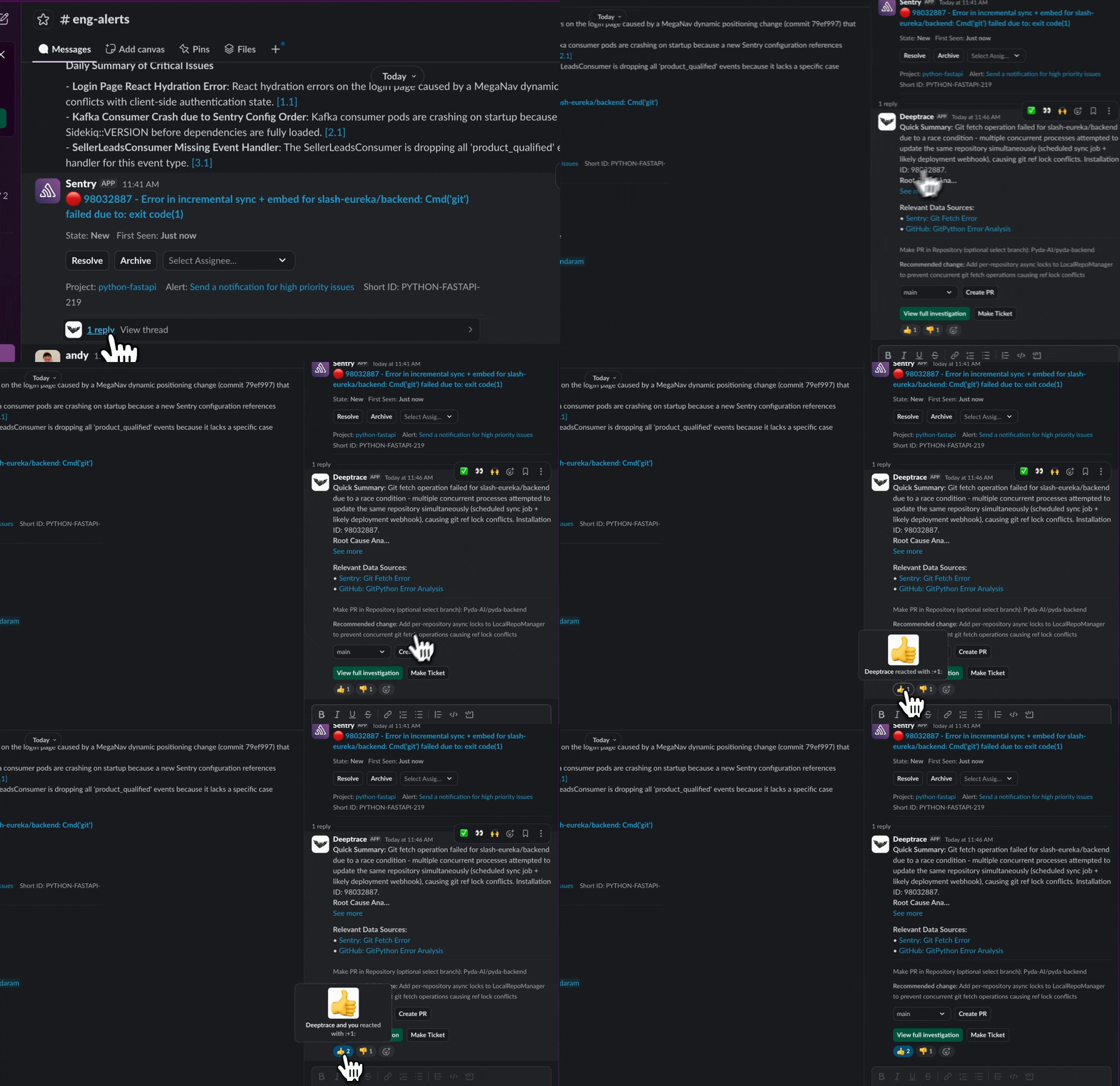
Use **thumbs up** or **thumbs down** under an investigation to train the agent on what good root causes look like for your system, so investigations get more accurate over time.
## Thumbs up / Thumbs Down
Use **thumbs up** or **thumbs down** under an investigation to train the agent on what good root causes look like for your system, so investigations get more accurate over time.
 Tip: For high-signal feedback, provide the correct root cause in a reply. Deeptrace captures this information and uses it to improve future investigations.
## Owner Attribution
Tip: For high-signal feedback, provide the correct root cause in a reply. Deeptrace captures this information and uses it to improve future investigations.
## Owner Attribution
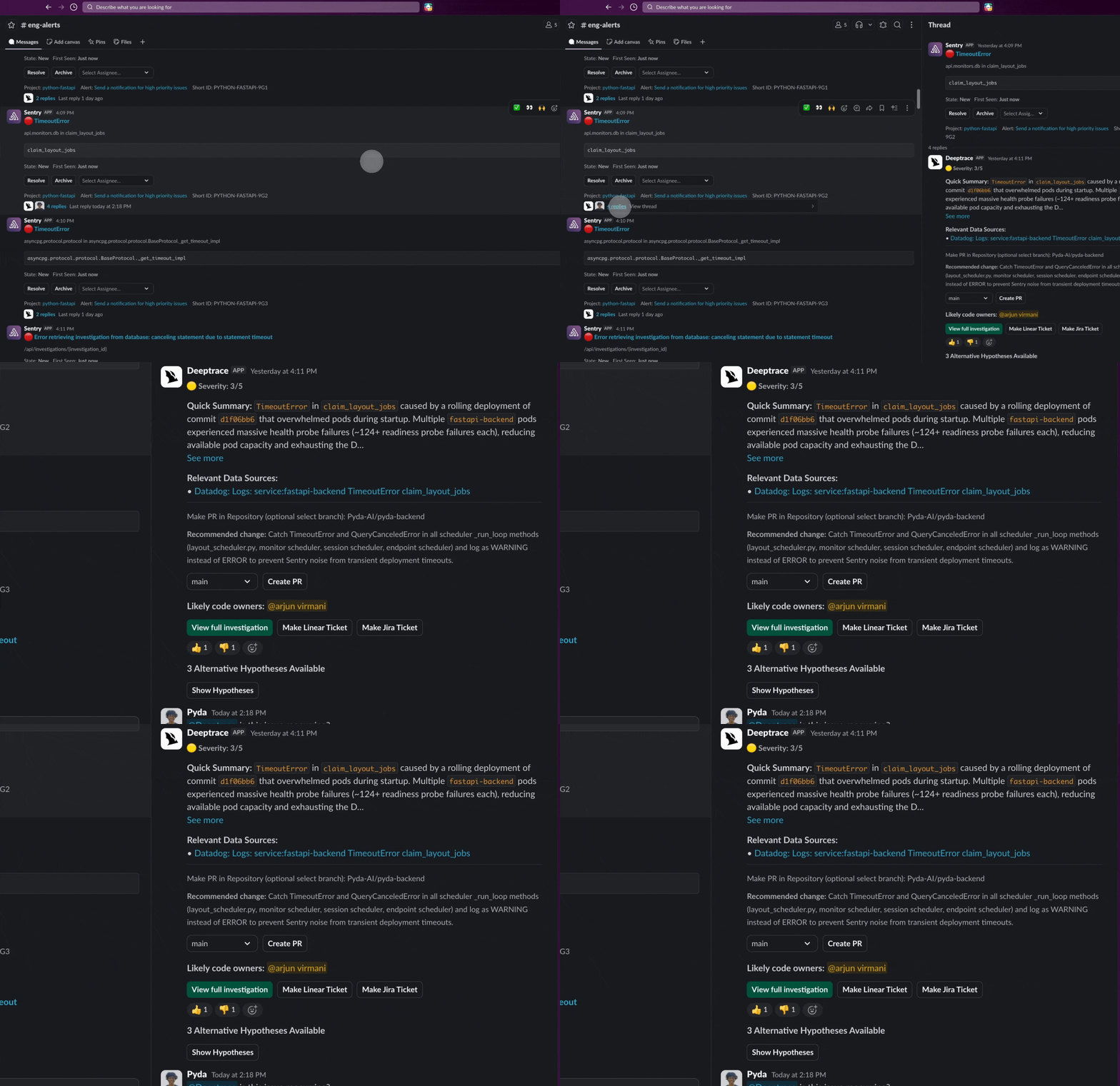 **Owner Attribution** automatically identifies the engineers most likely responsible for an issue (using git blame, CODEOWNERS files, and recent commit history) and surfaces them in the UI and Slack messages. Combined with escalation rules, you can route alerts directly to the right people. Likely Owners appear after an investigation is completed in Slack and on the Issues Page. You can also use the{{code_owners}}template variable in escalation rules to route alerts directly to attributed owners.
If your team has ownership conventions beyond what CODEOWNERS covers, you can define them in your **Workspace Editor** files. For example, adding ownership mappings to your `deeptrace.md` .
## What's Next?
Explore advanced features in the Deeptrace web view like rule-based filtering and custom context to customize how your team investigates and collaborates with Deeptrace.
**Owner Attribution** automatically identifies the engineers most likely responsible for an issue (using git blame, CODEOWNERS files, and recent commit history) and surfaces them in the UI and Slack messages. Combined with escalation rules, you can route alerts directly to the right people. Likely Owners appear after an investigation is completed in Slack and on the Issues Page. You can also use the{{code_owners}}template variable in escalation rules to route alerts directly to attributed owners.
If your team has ownership conventions beyond what CODEOWNERS covers, you can define them in your **Workspace Editor** files. For example, adding ownership mappings to your `deeptrace.md` .
## What's Next?
Explore advanced features in the Deeptrace web view like rule-based filtering and custom context to customize how your team investigates and collaborates with Deeptrace.